How to transfer a Minecraft world to your server
The short answer. To transfer a Minecraft world to a server, take the world folder — the one that holds level.dat — and, if they sit beside it, the Nether and End folders, then zip them. Stop the game or the old server first; on a running server, type save-all flush and wait for it to finish. Upload the archive to the new server (here, through the "Import a world" field when you create it), make sure the folder name matches the server's level-name setting, and start it. Before you invite anyone, check three things: you spawn where you left off, your inventory is there (player files are matched by UUID, see below), and a portal still leads to your old Nether. The server must run the same Minecraft version as the world or a newer one, and a modded world must never travel without its mods.
In this guide
What a Minecraft world actually is
A world isn't a file, it's a folder. It contains:
level.dat— the heart of it: seed, spawn point, time, game rules. This is what makes a folder a world, and it stays at the root of the folder in every version.region/— the terrain chunks already generated, as.mcafiles. This is the bulk of the size.playerdata/— each player's inventory and position, one file per UUID.data/— maps, raids, village state.
Minecraft 26.1 (March 2026) moved things around. According to the Minecraft Wiki, player files go from playerdata/ to players/data/ (and advancements/ and stats/ to players/advancements/ and players/stats/), and each dimension gets its own folder under dimensions/: the Overworld's region/ sits in dimensions/minecraft/overworld/, and the Nether and End replace DIM-1/ and DIM1/ with dimensions/minecraft/the_nether/ and dimensions/minecraft/the_end/. The rule below doesn't depend on any of it.
And above all: the Nether and the End aren't always in the same place. Before 26.1, depending on the Minecraft version and the server software, they live either inside the world folder (DIM-1/ and DIM1/) or beside it — typically world_nether/ and world_the_end/ on a Bukkit, Spigot or Paper server. This is the classic omission: you migrate the Overworld, everything works, and three days later someone steps through a portal into a brand-new Nether.
The rule that holds whatever the version: take the world folder AND any sibling folder whose name starts the same way. Then, once imported, walk through a portal before you invite anyone — that's the only check that proves all three dimensions came along.
Where to find it
- From a single-player game:
.minecraft/saves/<your world name>(on Windows,%appdata%\.minecraft\saves; on macOS,~/Library/Application Support/minecraft/saves; on Linux,~/.minecraft/saves). Everything is in one folder there. - From another host: in its file manager, at the server root. Look for the folder containing
level.dat. It's usually calledworld, but its name depends on the server'slevel-namesetting — it can be anything.
Stop the server before you download. A world copied while it's running can be copied half-done: chunks still in memory aren't on disk yet. On a running server, type save-all flush and wait for the confirmation before copying.
Packaging the archive: three accepted shapes
This is where older tutorials make life hard. You do not need to reproduce a precise folder tree. Three shapes are recognised and put back in place automatically:
- A
world/folder (withworld_nether/andworld_the_end/alongside if you have them) → left as-is. - The folder's contents, zipped without the folder itself — so
level.datat the archive root → filed intoworld/. - A folder with any name containing
level.dat, for exampleMySurvival/level.dat→ renamed toworld/, the name the server expects.
If the shape matches none of the three, the archive is left untouched rather than rewritten on a guess: better an import that doesn't load and gets fixed than an archive reorganised blind.
Accepted formats: .zip or .tar.gz. The cap is 4 GiB per archive — comfortably above a normal vanilla or modded world, but it isn't unlimited: a map explored for years across thousands of blocks can exceed it. If so, drop the dimensions you don't need, or prune the most distant regions before zipping.
A technical detail, because it matters for privacy: the
.zip→.tar.gzconversion happens entirely in your browser — unzipping, building the archive, compressing. Your world passes through no intermediate server before it reaches your own storage.
Importing
When creating the Minecraft server, use the "Import a world" field. The archive is unpacked on first boot, and your game resumes exactly where you left it.
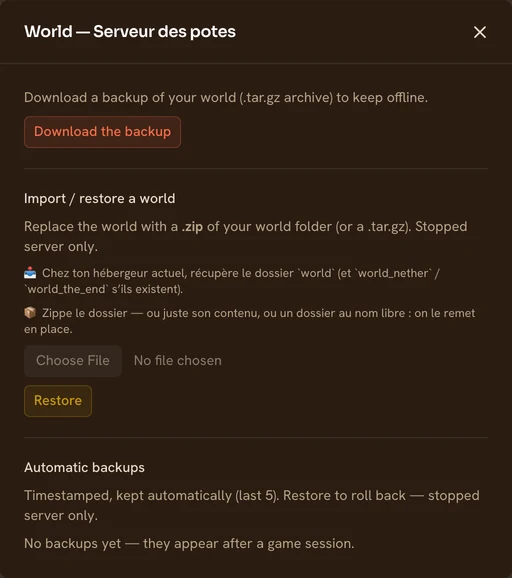
The import stays available afterwards from "Manage world" on the server card, with the server stopped — along with downloading your save and the list of automatic backups:
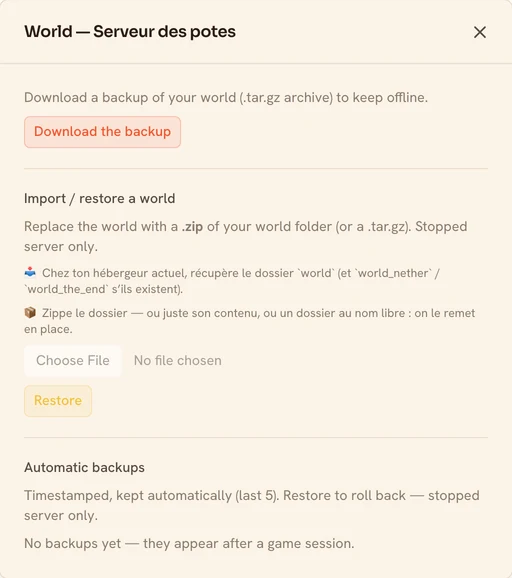
To change the world of a server that already exists, stop it and use the same import from "Manage world".
If you place the world by hand instead — at another host, or on your own machine — the folder name has to match the level-name setting of server.properties (world by default). When it doesn't, the server doesn't fail: it quietly generates a brand-new world beside yours, which is a common reason for an "empty map" after a transfer.
Your inventory: why it follows you, or doesn't
An inventory isn't kept in the world's terrain: each player has a file named after their UUID — playerdata/<uuid>.dat, or players/data/<uuid>.dat since 26.1 (Minecraft Wiki). The server finds your inventory by matching your UUID to a file name, so the question is where your UUID comes from:
- A server that checks Minecraft accounts (
online-mode): the UUID belongs to your account, so it is the same wherever you connect with it. Ours check accounts by default. - A server that doesn't: the UUID is computed from your username — a version 3 UUID built from
OfflinePlayer:<username>, as the wiki puts it. It is a different UUID, hence a different file name: the server doesn't find your old file, and you start with nothing.
So if you switch the "Verify Minecraft accounts" setting off so a friend on an unofficial launcher can join, expect their inventory to change files. And if yours is missing after a transfer, compare the UUID in the file name with your account's before blaming the archive.
Xaero's map and waypoints: they live on your PC
A world transfer doesn't carry a map mod's data, because Xaero's World Map and Minimap are mostly client-side mods: they keep their files in the game folder of each player, the map in xaero/world-map and the waypoints in xaero/minimap. Every server gets its own folder there, named after the address you connect to: Multiplayer_<address>.
So a server with a new address starts with an empty map, even if the world is identical. To keep yours, the mod's author describes the way: close the game, back up xaero/world-map, delete the folders the new address has created, then rename the old ones, changing only the address part of the name.
The two mistakes that give you an empty map
The version doesn't match. A world opened by a newer Minecraft version won't go back down: the chunk format evolves and the conversion is one-way. Note the exact version you were playing before you migrate — and if you're moving up a version, do it after the import, once you've confirmed the world loads.
The world was modded, the server isn't. An All the Mods or Cobblemon world contains blocks and entities vanilla Minecraft has never heard of. Loaded without its mods, it loses them — permanently. Recreate the same context: paste the same modpack, in the same version, before importing. See the modpack installation guide.
Once it's in
The world is archived before every shutdown and restored on the next boot, with a save-all flush immediately before archiving so no minute stays in memory. An automatic backup runs every 30 minutes while you play, of which the most recent is kept — six staggered up to seven days back with the backup option. Storage is free, server off included.
And if the import didn't give you what you expected, you can start again from your own archive: it stays downloadable.
The other games work the same way, with their own files — the two .db and .fwl files for Valheim, the save directory for Palworld, the game .zip as-is for Factorio. The import screen tells you what to grab for the game you picked.
And if your world isn't coming from a single-player game but from a server already hosted elsewhere, the import isn't the tricky part: getting the files out of the host you're leaving is, and dropping everything in before you switch on. That's the subject of the guide on moving your server from another host.
Create your Minecraft server and import your world at the creation step.