How to move an existing Minecraft world to your server
You already have a world — on your PC, over LAN, or at another host — and you want to pick it up elsewhere without losing a single build. Here's what to grab, how to package it, and the two mistakes that leave you staring at an empty map.
What a Minecraft world actually is
A world isn't a file, it's a folder. It contains:
level.dat— the heart of it: seed, spawn point, time, game rules. This is what makes a folder a world.region/— the terrain chunks already generated, as.mcafiles. This is the bulk of the size.playerdata/— each player's inventory and position, one file per UUID.data/— maps, raids, village state.
And above all: the Nether and the End aren't always in the same place. Depending on the Minecraft version and the server software, they live either inside the world folder or beside it — typically world_nether/ and world_the_end/ on a Bukkit, Spigot or Paper server. This is the classic omission: you migrate the Overworld, everything works, and three days later someone steps through a portal into a brand-new Nether.
The rule that holds whatever the version: take the world folder AND any sibling folder whose name starts the same way. Then, once imported, walk through a portal before you invite anyone — that's the only check that proves all three dimensions came along.
Where to find it
- From a single-player game:
.minecraft/saves/<your world name>(on Windows,%appdata%\.minecraft\saves). Everything is in one folder there. - From another host: in its file manager, at the server root. Look for the folder containing
level.dat. It's usually calledworld, but its name depends on the server'slevel-namesetting — it can be anything.
Stop the server before you download. A world copied while it's running can be copied half-done: chunks still in memory aren't on disk yet. On a running server, type save-all flush and wait for the confirmation before copying.
Packaging the archive: three accepted shapes
This is where older tutorials make life hard. You do not need to reproduce a precise folder tree. Three shapes are recognised and put back in place automatically:
- A
world/folder (withworld_nether/andworld_the_end/alongside if you have them) → left as-is. - The folder's contents, zipped without the folder itself — so
level.datat the archive root → filed intoworld/. - A folder with any name containing
level.dat, for exampleMySurvival/level.dat→ renamed toworld/, the name the server expects.
If the shape matches none of the three, the archive is left untouched rather than rewritten on a guess: better an import that doesn't load and gets fixed than an archive reorganised blind.
Accepted formats: .zip or .tar.gz. The cap is 4 GiB per archive — comfortably above a normal vanilla or modded world, but it isn't unlimited: a map explored for years across thousands of blocks can exceed it. If so, drop the dimensions you don't need, or prune the most distant regions before zipping.
A technical detail, because it matters for privacy: the
.zip→.tar.gzconversion happens entirely in your browser — unzipping, building the archive, compressing. Your world passes through no intermediate server before it reaches your own storage.
Importing
When creating the Minecraft server, use the "Import a world" field. The archive is unpacked on first boot, and your game resumes exactly where you left it.
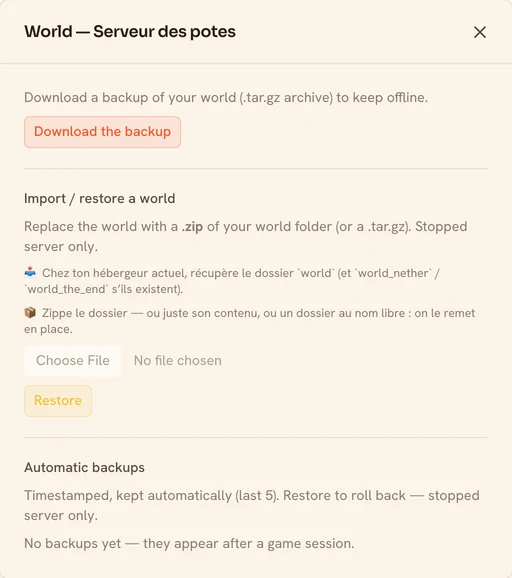
The import stays available afterwards from "Manage world" on the server card, with the server stopped — along with downloading your save and the list of automatic backups:
The two mistakes that give you an empty map
The version doesn't match. A world opened by a newer Minecraft version won't go back down: the chunk format evolves and the conversion is one-way. Note the exact version you were playing before you migrate — and if you're moving up a version, do it after the import, once you've confirmed the world loads.
The world was modded, the server isn't. An All the Mods or Cobblemon world contains blocks and entities vanilla Minecraft has never heard of. Loaded without its mods, it loses them — permanently. Recreate the same context: paste the same modpack, in the same version, before importing. See the modpack installation guide.
Once it's in
The world is archived before every shutdown and restored on the next boot, with a save-all flush immediately before archiving so no minute stays in memory. An automatic backup runs every 30 minutes while you play, of which the last 5 are kept. Storage is free, server off included.
And if the import didn't give you what you expected, you can start again from your own archive: it stays downloadable.
The other games work the same way, with their own files — the two .db and .fwl files for Valheim, the save directory for Palworld, the game .zip as-is for Factorio. The import screen tells you what to grab for the game you picked.
Create your Minecraft server and import your world at the creation step.